Simplifying Discovery
Redesigned search filters to improve usability and content visibility.
00
context
Cricut builds smart cutting machines that use Design Space, a platform that enables users to create and produce custom projects. As part of the Search & Subscriptions pod, I focused on improving discovery and monetization experiences, reducing friction, increasing efficiency, and helping users stay in their creative flow.
problem
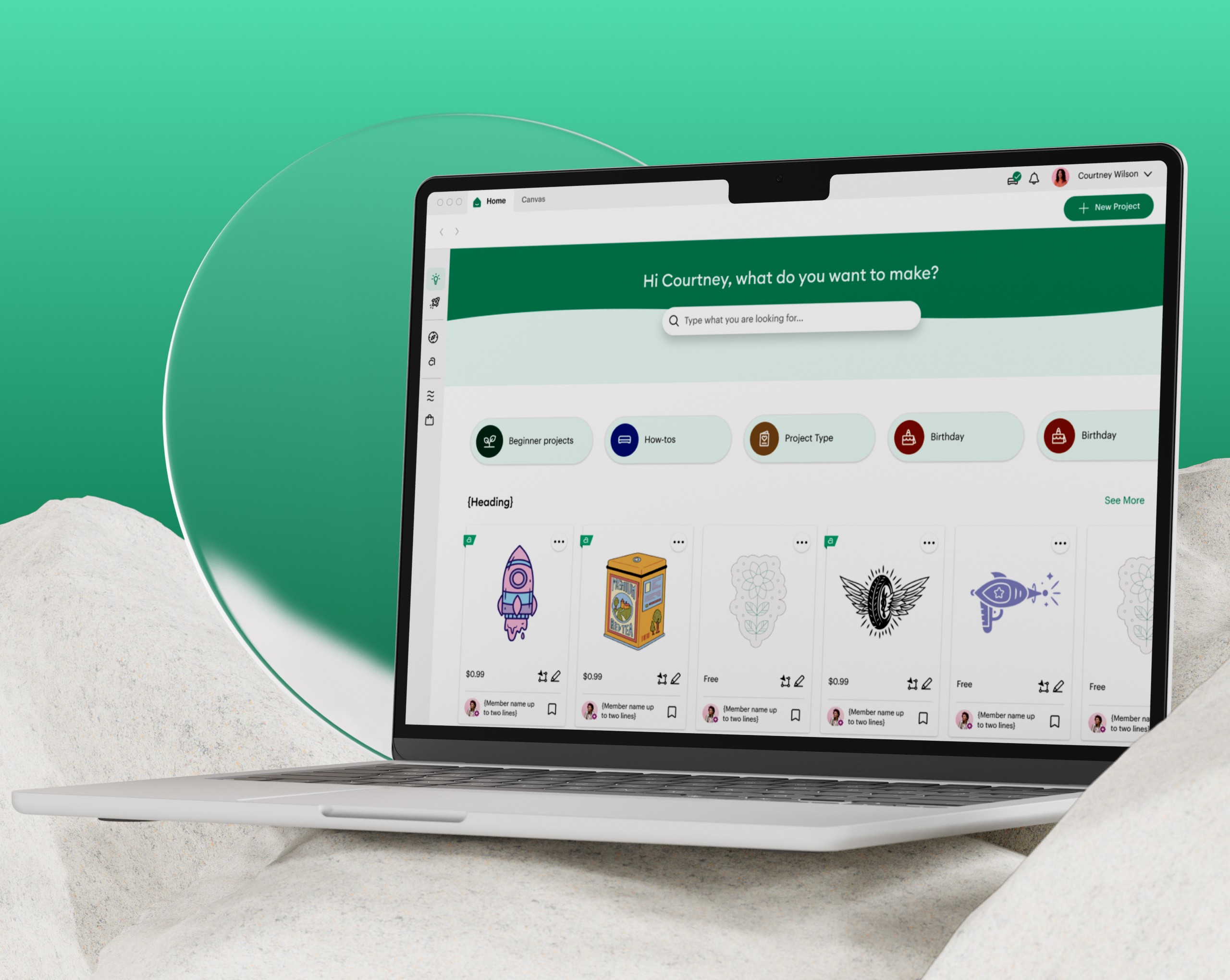
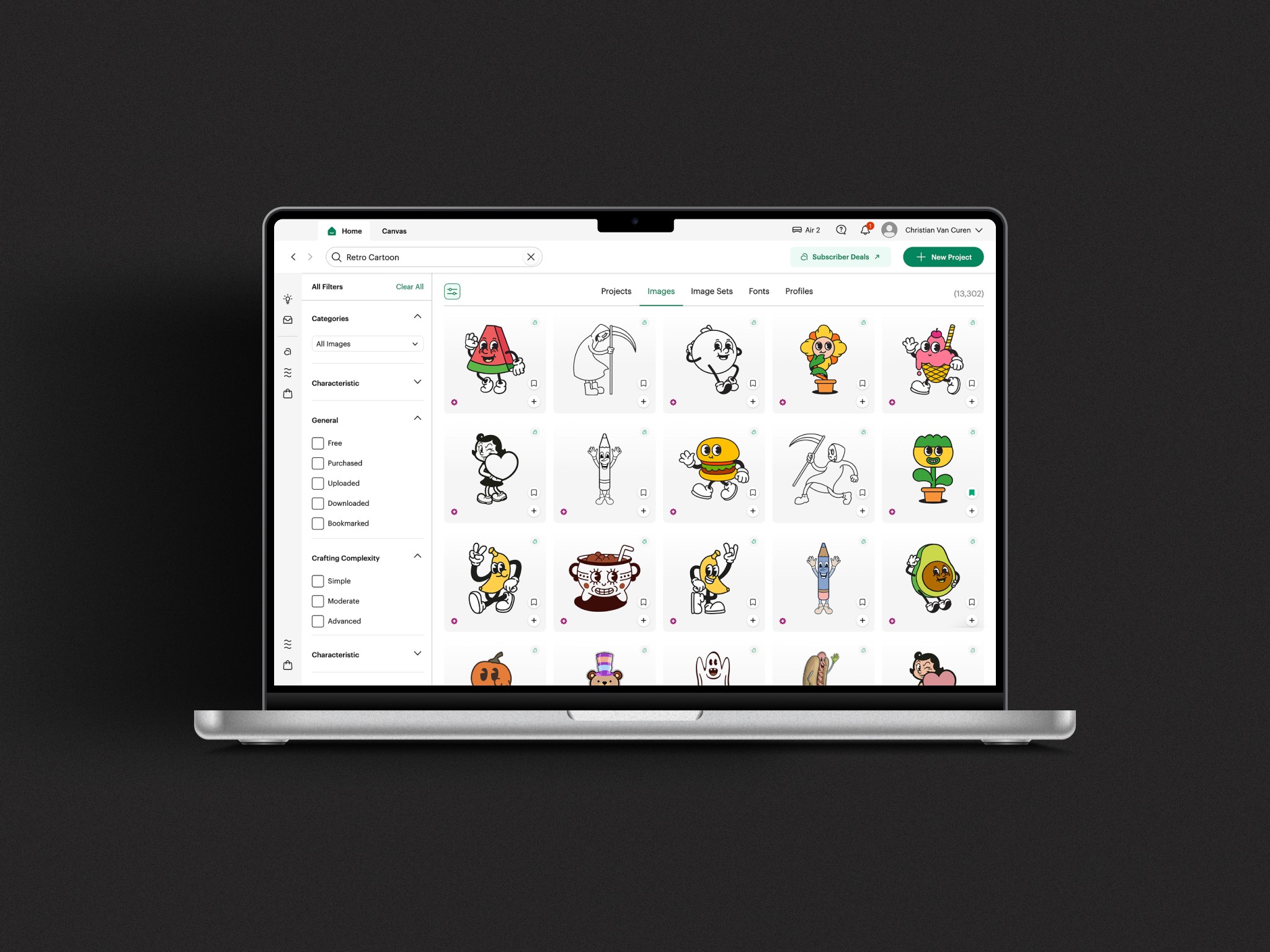
When I first joined the Search pod - while still contributing to the Subscriptions team - one of my earliest projects was redesigning the filters. I was eager to tackle it because the existing filters were misaligned with our UI, offered little value to users, and couldn’t be collapsed. With the left-hand navigation always open and filters fully expanded, over 45% of the screen was occupied, leaving just 55% for actual results. This layout significantly hindered content discoverability, leading to longer search times and lower conversions.
old feature
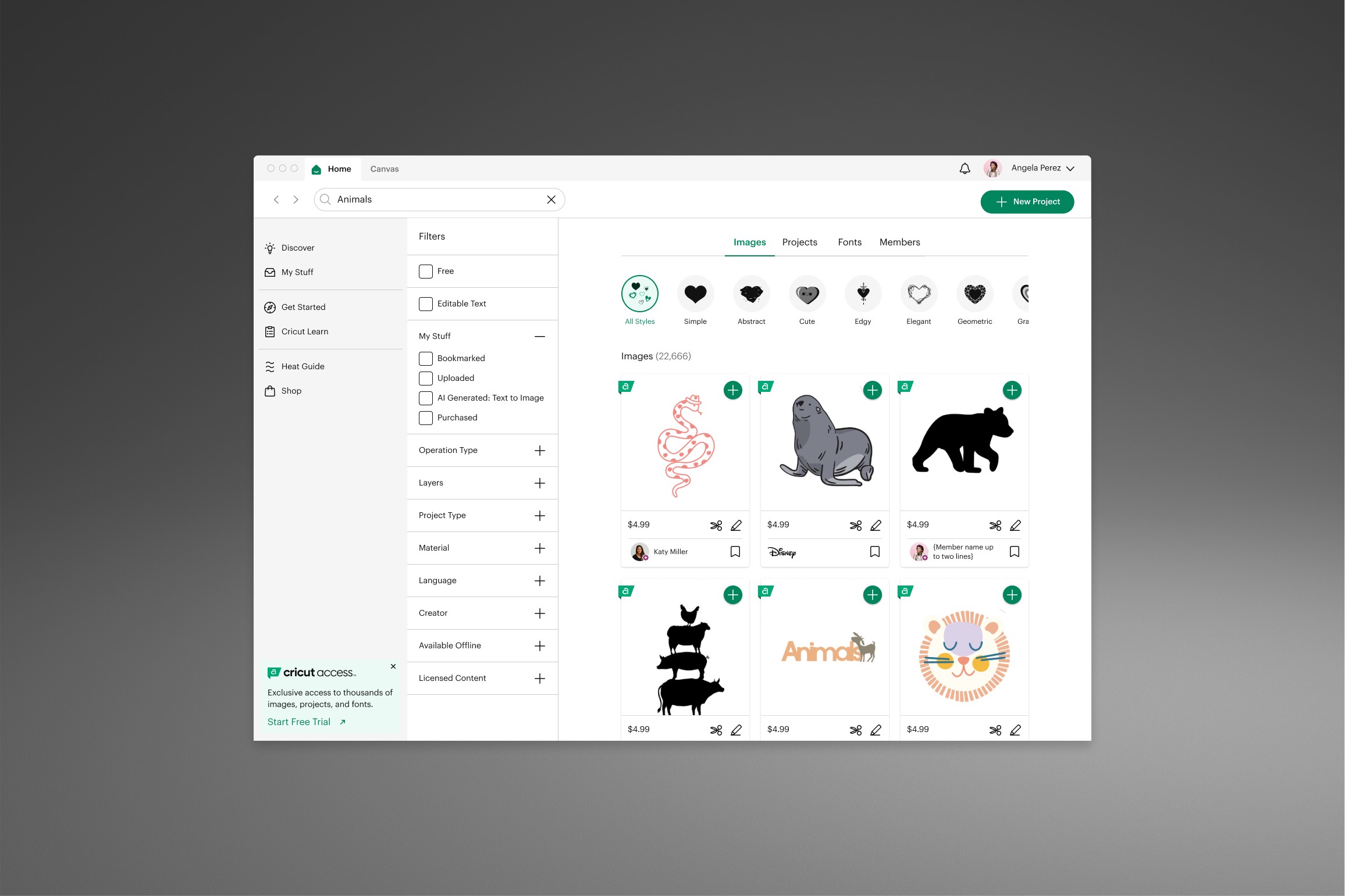
goals
Improve filter panel behavior by enabling collapsible filters and defaulting the left navigation to closed, reducing screen clutter and friction. Introduce research-backed filters that help users find content faster and more efficiently. Design project-specific filters to accelerate discovery and streamline search workflows.
success criteria
Users can collapse the filter panel and navigate without interference from the left-hand nav, reclaiming screen space for results. Users can locate desired content faster using the new research-backed filters. Project-specific filters reduce search time and make project discovery more efficient and intuitive.
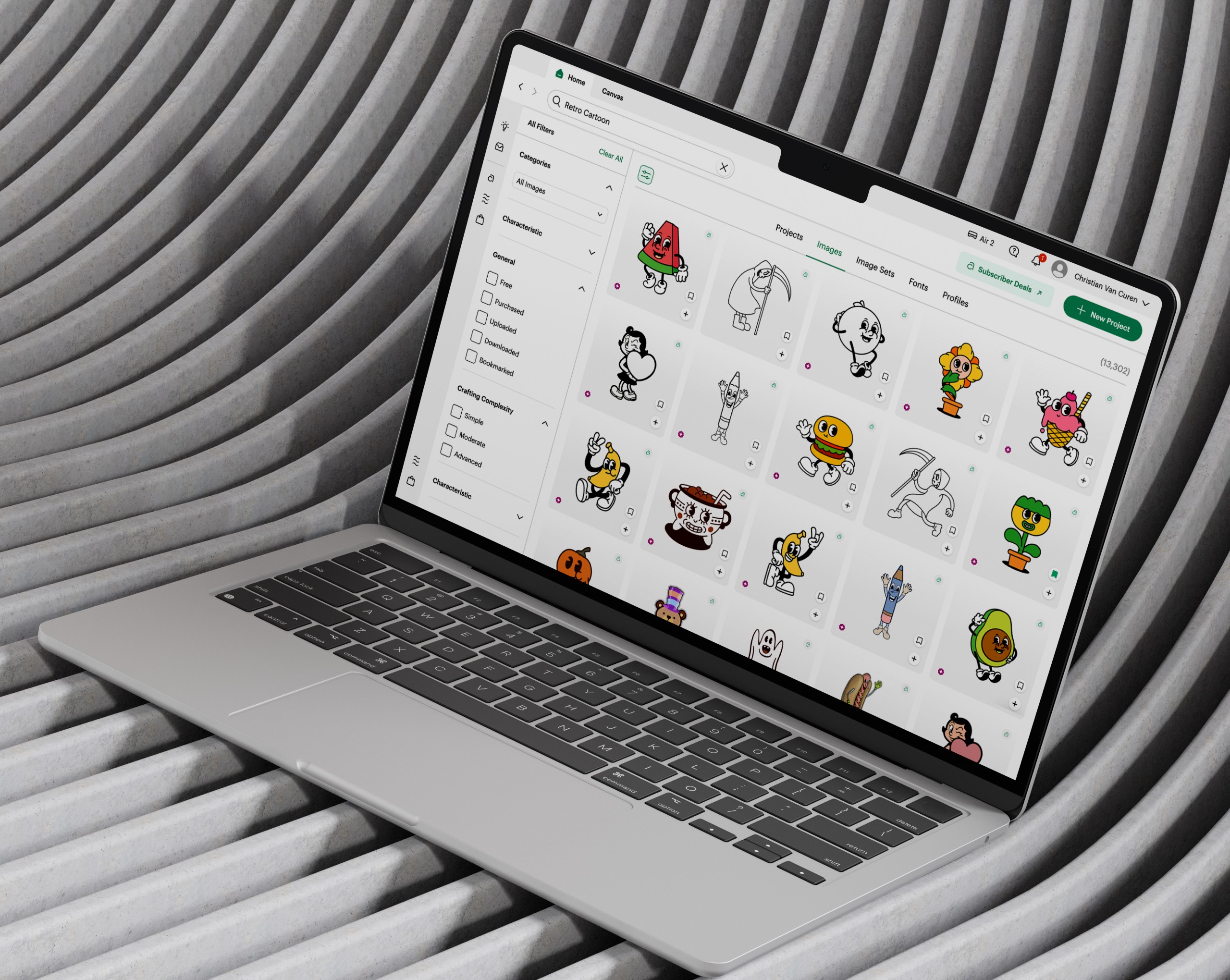
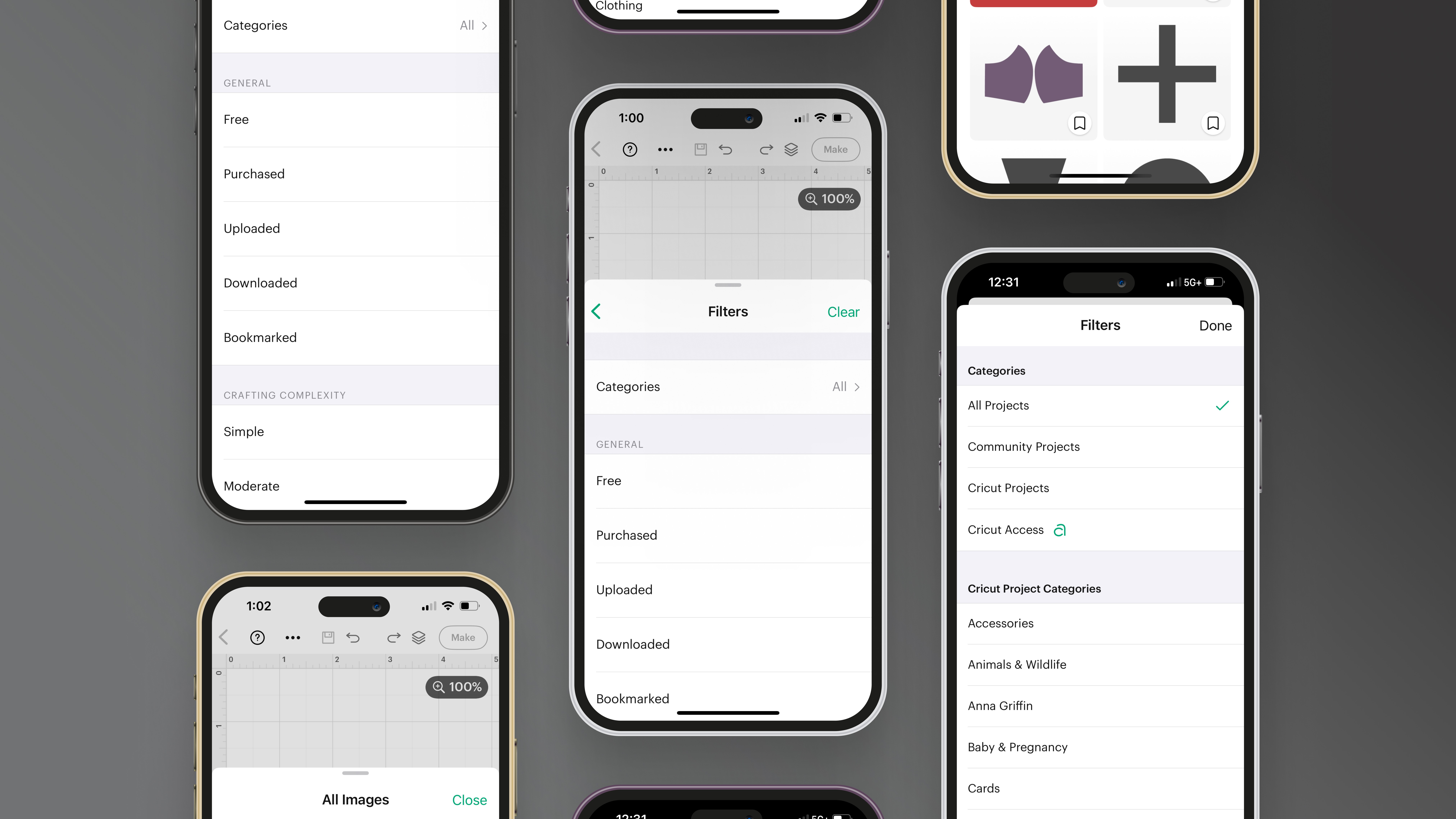
I led a complete rebuild of the filter panel to improve content visibility and intent-based discovery. The solution introduced research-backed filters, enabled a collapsible panel, and prevented the filters and left navigation from being open simultaneously—reclaiming screen space and reducing friction during search. The final design established a new filtering standard across Design Space and was rolled out incrementally to measure impact.
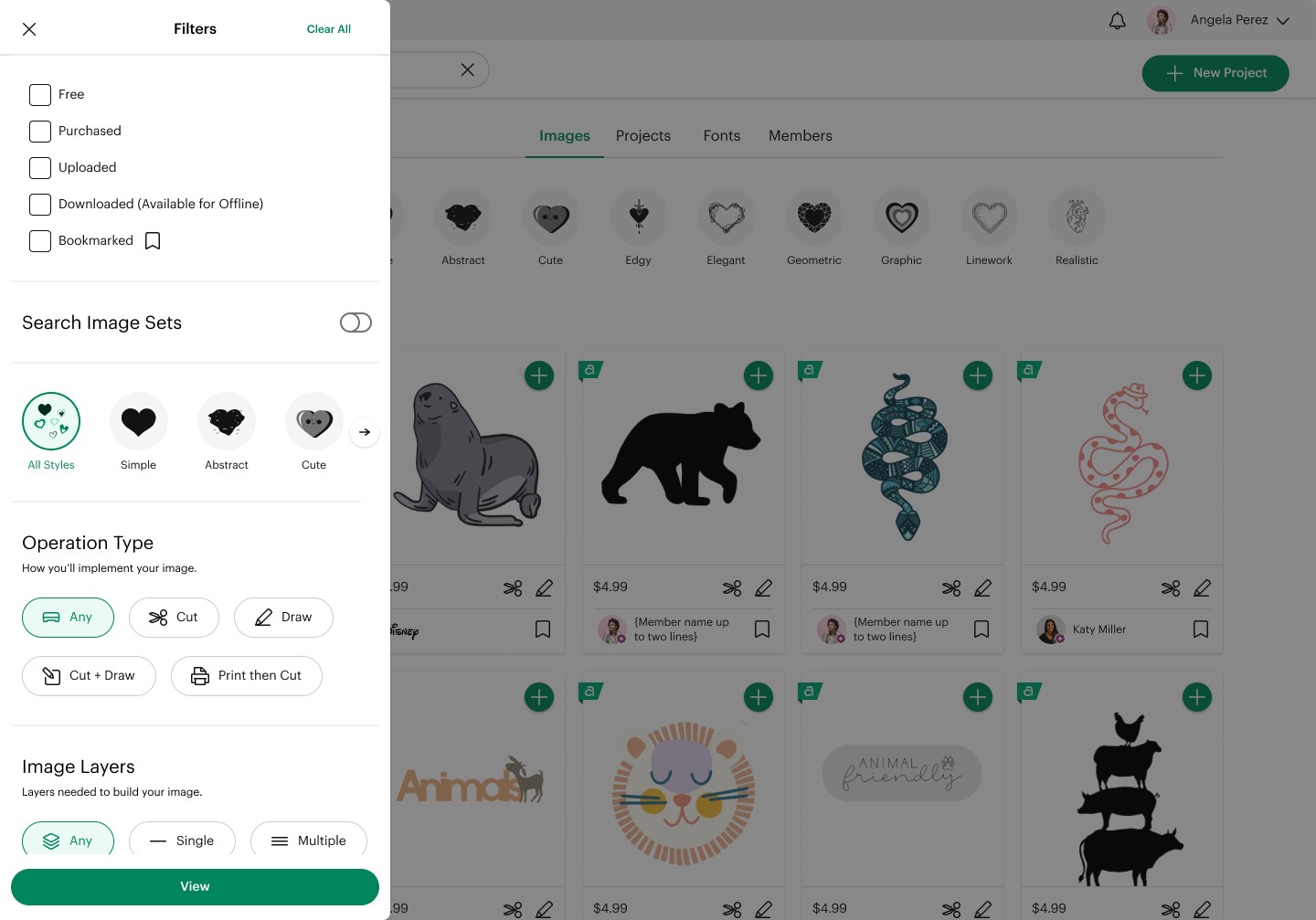
Initial exploration focused on aligning filter behavior with the Universal Search hierarchy.
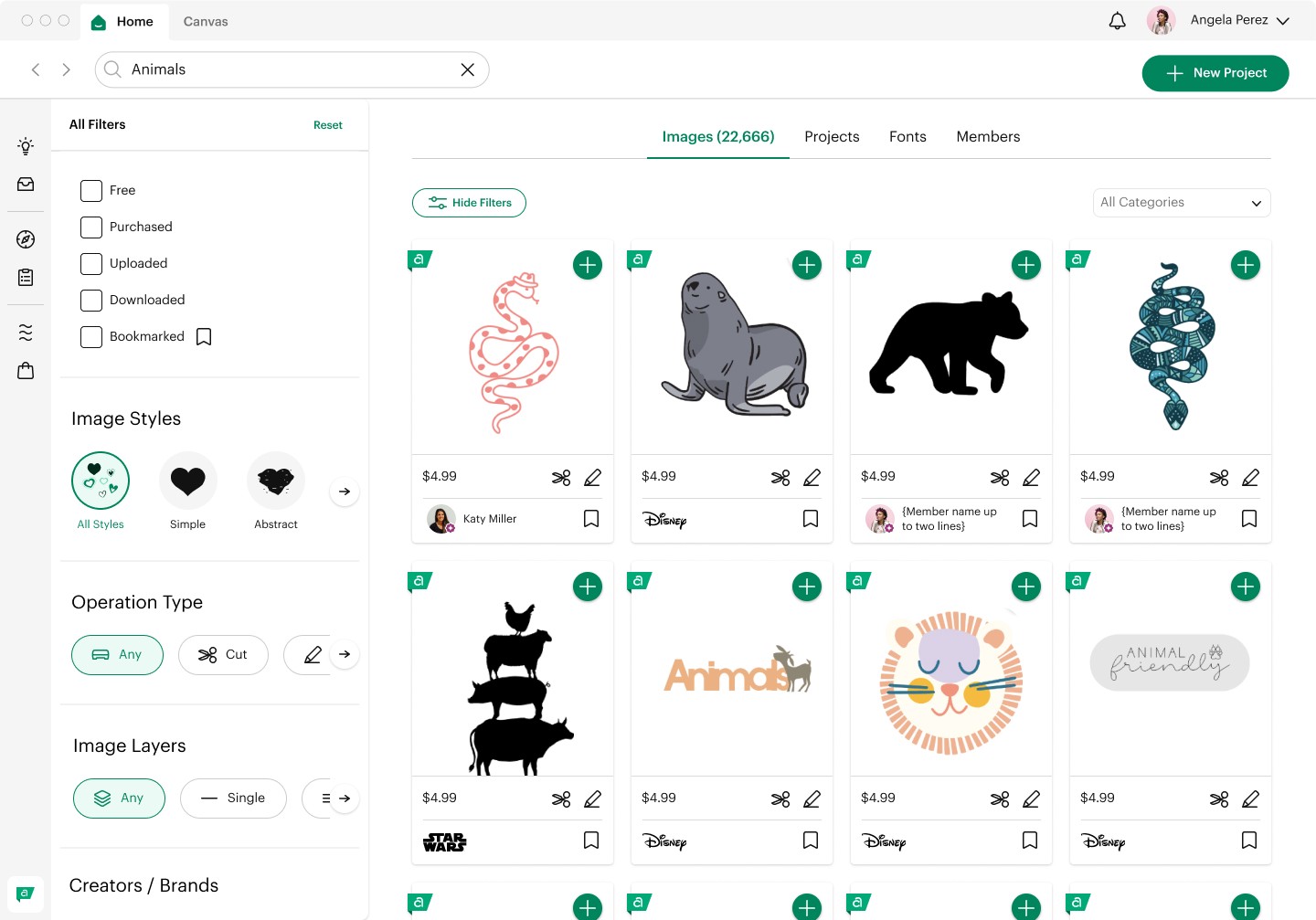
Based on early feedback and some competitive analysis, I pivoted the designs to better align with users’ current mental models.
Key Features I Led:
Research-backed filters: Introduced filters grounded in user insights to make content discovery faster and more intuitive.
Collapsible filter panel: Reclaimed screen space and reduced friction by allowing users to hide filters when not needed.
Design System standard: Established a scalable filtering pattern applied consistently across Design Space.
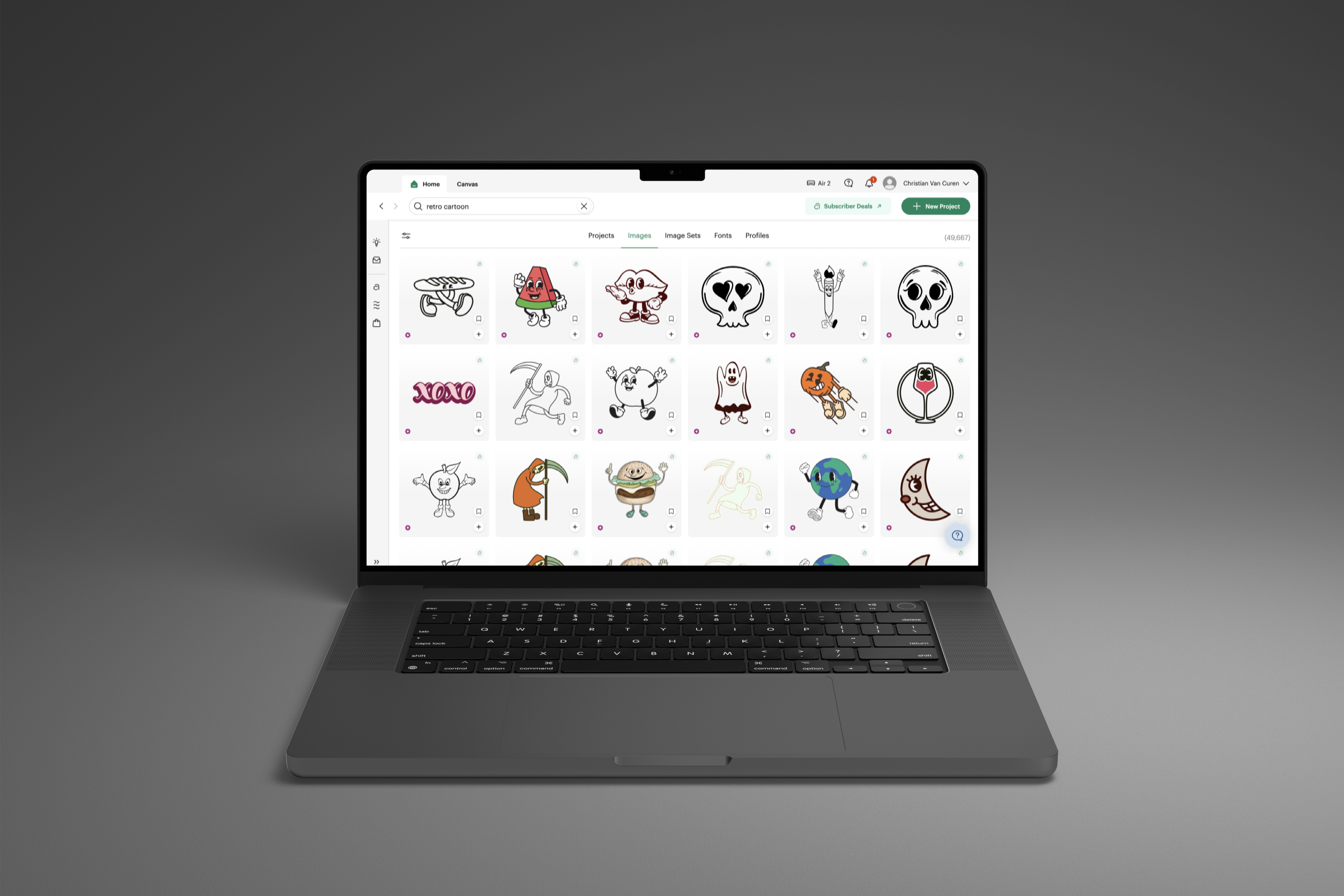
The redesigned filters were well-received by the Cricut community, simplifying search and making content discovery more seamless. The new collapsible behavior reduced visual clutter, improved usability, and increased efficiency across project and image search. The solution has since been adopted in Canvas, establishing a consistent, scalable filtering standard and addressing additional issues present in the previous system.
year
2024 - 2025
timeframe
1 year
tools
Figma
category
UI/UX
01
02
03
see also